
Set Up a Box Connection in Workload to Automate Files 📦

Adam Browder
October 10, 2025
Box is where your team’s content lives—contracts, creative assets, reports, and everything in between. When you set up a Box connection in Workload, those files can move and update automatically. Instead of dragging and dropping, Workload routes them to the right place the moment something changes.
Imagine new proposals saving instantly in a client folder, marketing assets syncing to Box as soon as they’re approved, or signed PDFs being archived securely for finance. Workload keeps everything organized, version-controlled, and accessible without the endless download-upload cycle.
By bringing Box into your automations, you eliminate repetitive file handling and ensure nothing falls through the cracks. Your team stays focused on collaboration and delivery—while Workload quietly manages the flow of content behind the scenes.
🔀 Methods to Set Up a Box Connection in Workload
You can connect Box from your dashboard or directly inside a workflow step. Use the dashboard if you’re setting up for the first time, or connect it from a step while you’re building.
🖥️ From the Dashboard
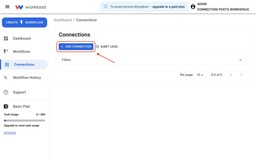
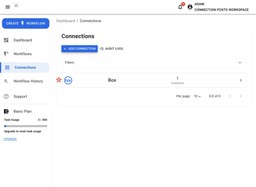
In the Workload Dashboard, click the Connections tab in the left-hand menu, then select the blue + Add Connection button.

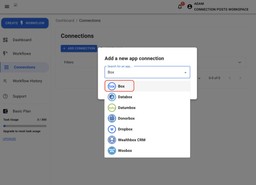
In the popup window, search for Box and select it from the list.

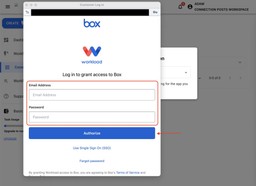
A new window will appear asking for your Box account credentials. Enter your login information and click Authorize.

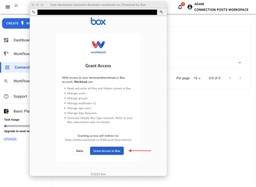
Click Grant Access to Box to authorize Workload to connect to your account.

Once connected, you’ll see Box listed under your active connections—ready to use in any automation you build.

🪜 From an Automation Step
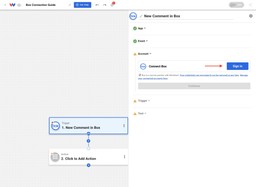
Add a Box step to your automation and click Sign in under the Account tab.

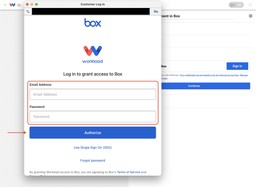
In the popup window, log in to your Box account using your credentials and then clicking Authorize.

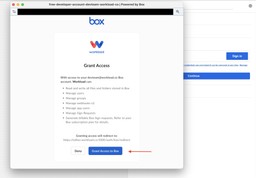
Click Grant Access to let Workload connect to Box securely.

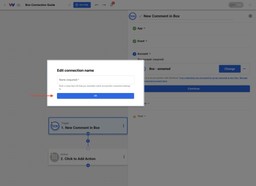
Name your connection to identify it for future automations.

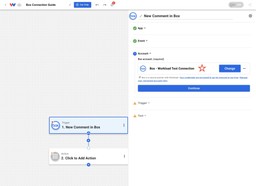
Your Box account will now appear in the step’s account field.
💡 What You Can Do Next
Once your Box account is connected, it becomes a powerful part of your automations. Here are a few ways teams use it:
- Automatically upload new signed documents from apps like DocuSign or PandaDoc to a specific Box folder for safekeeping.
- Send creative assets or project deliverables from Canva or Google Drive directly into Box to keep everything centralized.
- Back up reports or exports from Google Sheets, HubSpot, or Airtable to Box at the end of each week—no manual uploads needed.
- Share large files instantly in Slack or via Gmail when a new item is added to Box, keeping your team informed in real time.
- Store completed forms or submissions from tools like Typeform or Forms by Workload straight into Box for organized record-keeping.
With Box connected, your files move automatically between the tools you use most. Your data stays secure, your folders stay organized, and your team can focus on collaboration instead of managing uploads and downloads.
Tags
Ready to automate your workflows?
Start building powerful automations with Workload today.
Get Started Free