
Automatically Send AI-Powered Replies to Form Submissions 🤖

Adam Browder
October 22, 2025
When customers fill out a form on your website, they expect a fast and thoughtful reply. With Workload, you can handle the entire process in one place—collect responses and generate and automatically send AI-powered replies automatically. Every message is created by AI Wizard and delivered instantly through Workload’s Send Email tool, so your customers always receive a prompt, professional response.
This automation keeps communication seamless and consistent. Each reply is written using the customer’s own form answers, ensuring that every email feels relevant and personalized. You can also specify a custom “Reply-To” address so any responses go straight to your inbox.
In this tutorial, you’ll learn how to build an all-in-one Workload automation that captures new form submissions, uses AI to craft tailored replies, and sends those messages automatically—no external apps or manual work required.
🧩 Essentials
🤖 Workload (free or paid)
You can build, run, and manage this entire automation directly inside Workload. Create forms, generate AI-powered replies, and send professional emails—all from one place, with no external apps or coding required.
💡 Why Automate
⚡ Respond Instantly
Every form submission receives a fast, professional reply.
🧠 Personalize Every Message
Replies adapt to each customer’s feedback or question.
⏰ Save time on routine tasks
No more typing or copy-pasting the same email responses.
⚙️ How to Automatically Send AI-Powered Replies to Form Submissions
Apps expect data in different formats—like dates, names, or labels. Workload’s built-in AI Wizard lets you clean or adjust data between steps. If your trigger already sends clean data, you can skip formatting altogether.
Step 1: Create a New Automation (Workload)
Open your Workload Dashboard and click Create Workflow.

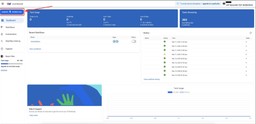
Give your automation a descriptive title such as AI-Powered Form Replies.

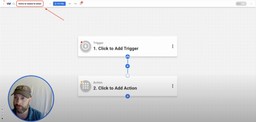
Step 2: Build a New Form Trigger (Forms by Workload)
Click inside the Trigger box and select Forms by Workload.

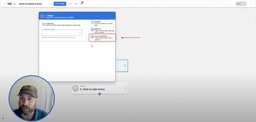
Choose the event New Form Submission, then click Continue.
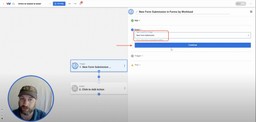
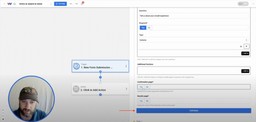
Create your form and add the questions you want customers to answer. For a step-by-step guide, watch the Workload University video in the Video Walkthrough section of this post, or visit our detailed Forms by Workload setup blog post. Once you have finished designing your form, click Continue.

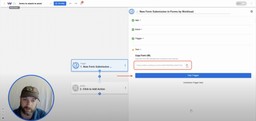
To test the form, copy the form URL and submit a test response. Now, return to Workload and click Test Trigger to pull in a sample submission and confirm the form data is received.

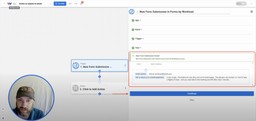
Once you get a successful response from the trigger test, click Continue.

Step 3: Generate a Personalized Response (AI Wizard by Workload)
Click into the action step below your trigger and choose AI Wizard by Workload from the TOOLS menu.
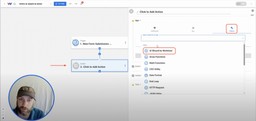
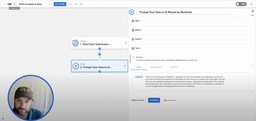
Next, select the event Prompt Your Data. Then click Continue.
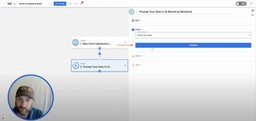
In the Input Data field, map the customer’s response text from your form submission.
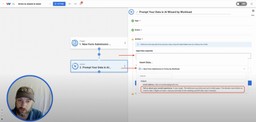
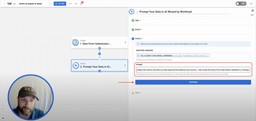
In the Prompt field, enter clear instructions for AI Wizard. For example: “Analyze this feedback and write and email reply that addresses all concerns. Only include the body of the email without greetings or closings.” Then click Continue.
Click Test Action to verify the AI response looks polished and relevant.

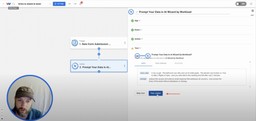
Once you get a successful response, click Continue.

Step 4: Send the AI Reply (Workload)
Add another action step, open the Tools menu in Workload, and select the Send Email event.
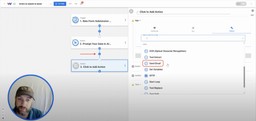
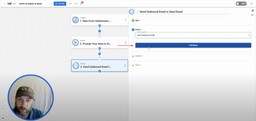
Select Send Outbound Email as the event, then click Continue.
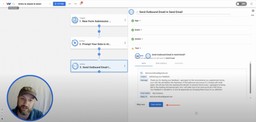
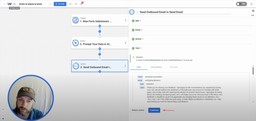
Now, map your fields to create your reply email:
- To → Email (from Step 1 – New Form Submission)
- Subject → Enter a static subject line
- Message → AI-generated text (from Step 2 – AI Wizard)
- Attachment → optional field for attachments
- From Name → Your company or personal name
- Reply-To → Static email address for follow-up replies
- Cc → optional field for carbon copies
- Bcc → optional field for blind carbon copies
Once you have mapped the fields for your email, click Continue.
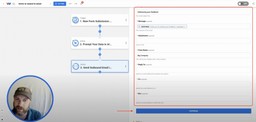
Click Test Action to send a test message and confirm it appears correctly in your inbox.
After you get a successful test response, click Continue.
Step 5: Activate Your Automation (Workload)
Check that every step in your workflow has a green success indicator. Then, click the toggle to On in the top-right corner of the editor to activate your automation.
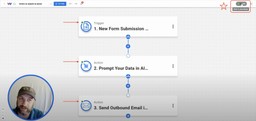
* Your system will now instantly analyze and reply to every new form submission using AI.
🎨 Make It Yours
Want more flexibility or a personal touch? Try these customization ideas to make your Automatically Send AI-Powered Replies automation work exactly how you want it.
🎯 Adjust Tone by Form Type
Use different AI prompts in AI Wizard to match your brand voice—friendly for surveys, formal for business feedback.
💬 Add Contextual Details
Include form data like a customer’s company name or service type directly in your AI prompt for more specific replies.
📎 Attach Helpful Resources
Automatically add links or attachments (like support articles or guides) based on keywords in the form response.
🧠 Refine with AI Feedback Loops
Send each AI-generated email into a hidden internal form for team review, then retrain prompts to improve future replies.
🌐 Expand This Automation Into a Complete AI-Powered Feedback System
This is just the beginning—expand your new ability to Automatically Send AI-Powered Replies to organize feedback, alert your team, and improve customer experience.
💬 Send a Summary to Slack
Notify your team whenever a new form response is analyzed and replied to, so feedback never goes unnoticed.
📋 Log Responses in Google Sheets
Keep a running record of every AI-generated email along with form data and timestamps to track patterns and sentiment over time.
📆 Create Follow-Up Tasks Automatically
Add a task in your project manager (like Todoist or ClickUp) when a form mentions an issue that needs follow-up or review.
🔍 Branch for Missing Data
If a form doesn’t include an email address, skip the reply step and route the entry to a human review queue or team inbox.
🧠 Learn More
📘 Workload University
Watch in-depth video tutorials that walk through every automation, including AI Wizard and Forms.
🆘 Workload Help Center
Step-by-step documentation showing how to connect apps and configure each tool inside Workload.
🤖 Artificial Intelligence with Workload
Explore how Workload uses AI to transform automation across apps.
🎥 Video Walkthrough
Tags
Ready to automate your workflows?
Start building powerful automations with Workload today.
Get Started Free