
Import Google Forms into Google Sheets Automatically 📋📊

Adam Browder
October 28, 2025
Your business runs on information—from client inquiries and internal requests to team feedback and event signups. The easiest way to keep it all organized is to import Google Forms into Google Sheets automatically. Instead of copying every response by hand, you can collect, sort, and review your data the moment it’s submitted.
With Workload, every new form submission instantly becomes a new row in your spreadsheet—no CSVs, no manual updates, and no risk of missing important details.
This automation ensures your data stays structured and searchable in real time, ready for reporting, collaboration, or follow-up. Whether you’re tracking team requests, customer surveys, or job applications, Workload keeps your information flowing accurately between Google Forms and Google Sheets—without lifting a finger.
🔌 Essentials
📝 Google Forms
Collect responses from employees, clients, or customers with structured, shareable forms.
📊 Google Sheets
Store and organize your form submissions for reporting, tracking, or collaboration.
🤖 Workload (free or paid)
Build, run, and manage your automation—no code needed.
💡Why Automate
📥 Centralize responses instantly – New form submissions appear in your sheet—no downloads or copy-pasting.
👀 See updates in real time – Track requests and feedback the moment they’re submitted.
🧹 Keep data clean and usable – AI Wizard flattens complex responses into neat, labeled columns.
🤝 Collaborate without delay – Share the sheet so teammates can review or act immediately.
⚙️ Build an “Import Google Forms into Google Sheets” Automation
Apps expect data in different formats—like dates, names, or labels. Workload’s built-in AI Wizard lets you clean or adjust data between steps. If your trigger already sends clean data, you can skip formatting altogether.
Step 1: Create a New Automation (Workload)
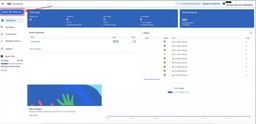
Click Create Workflow in the Workload Dashboard.

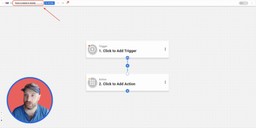
Give your automation a title (for example, Forms → Sheets Automation).

Step 2: Add Your Trigger (Google Forms)
Click inside the Trigger box and choose the Google Forms app.

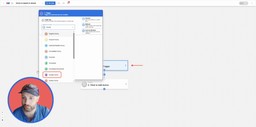
Select the event New Form Response, then click Continue.

Click Sign in to connect your Google Forms account if you haven’t done so already. For help, follow our step-by-step guide on how to connect Google Forms to Workload. Once connected, click Continue

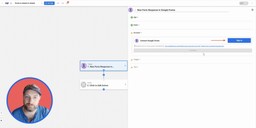
Choose the specific form you want to track (for example, Team Task Request Form), then click Continue.
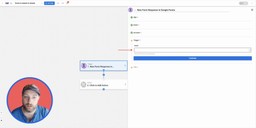
Click Test Trigger to pull in recent responses.
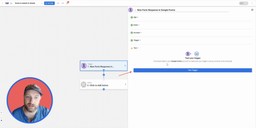
Once the test returns sample data successfully, click Continue.
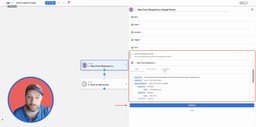
Step 3: Format Responses (AI Wizard by Workload)
Google Forms stores answers in nested arrays. Before sending them to Sheets, we’ll use AI Wizard to flatten and label each answer.
Click into the action step, open the Tools menu, and choose AI Wizard by Workload.
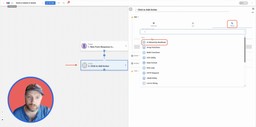
Select Prompt Your Data as the event, then click Continue.

In Input Data, choose the Answers Array from your trigger.
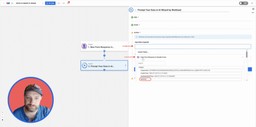
In your prompt field, write a prompt to remove the answers from the array and to label each field (ex: Extract each answer from this array and return it as labeled fields). Next, click Continue.
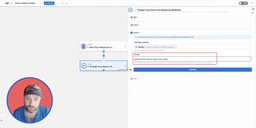
Now, click Test Action to preview the cleaned data.
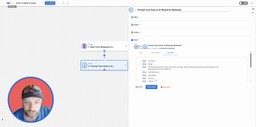
Once the test shows organized fields, click Continue.
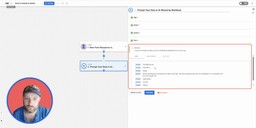
Step 4: Add Spreadsheet Row Action (Google Sheets)
Click the + button underneath your AI Wizard step to add a step, then choose the Google Sheets app.
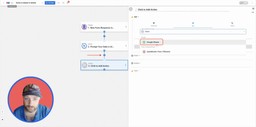
Select the event Create Spreadsheet Row, then click Continue.

Click Sign in to connect your Google Sheets account if you haven’t done so already. For help, follow our step-by-step guide on how to connect Google Sheets to Workload. Once connected, click Continue.
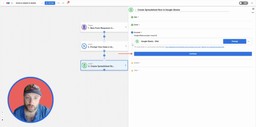
Choose your destination spreadsheet (ex: Task List) and select the correct sheet (ex:, Sheet 1).

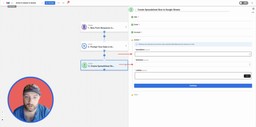
Map the fields you want to include in the Google Sheets row by clicking + Add to in the rowData box. You can add as many as you need for each column you want to add data to. Once you have finished, click Continue.
Note: The available fields available are determined by the worksheet you choose so the columns will be different from those used in our example.
- Timestamp → Last Submitted Time (from Step 1 – Google Forms)
- Name → Name (from Step 3 – AI Wizard)
- Email → Email (from Step 3 – AI Wizard)
- Request Details → Request Field (from Step 3 – AI Wizard)

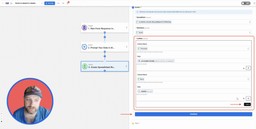
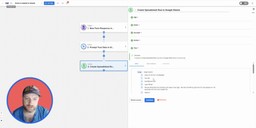
Now hit Test Action to send sample data into your spreadsheet.

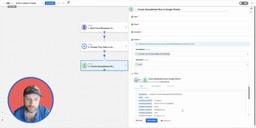
Confirm the test row appears correctly in Google Sheets, then click Continue.
Step 5: Activate Your Automation (Workload)
Return to the Workload editor and make sure every step shows a green indicator. Now, toggle your automation On to begin running it live.

* Now, every new Google Form submission will be formatted by AI Wizard and added instantly to Google Sheets.
🎨 Make It Yours
Want more flexibility or a personal touch? Try these customization ideas to make your Import Google Forms into Google Sheets automation work exactly how you want it.
🎯 Add Filters for Specific Forms
If you manage multiple Google Forms, run the automation only when a specific form title or ID matches your target survey.
🧾 Include Submission Summaries
Use the AI Wizard to summarize long-form answers and add a concise recap column in your Google Sheet.
📅 Timestamp with Local Time Zone
Insert your local time zone automatically so submission times match your reporting or scheduling tools.
📊 Auto-Sort by Category or Priority
Add a sorting step so new responses always appear in the correct order—by urgency, topic, or department.
📚 Core Resources
📘 Workload University
Deep-dive tutorials and video walkthroughs.
🆘 Workload Help Center
Step-by-step connection guides and troubleshooting articles.
📝 Google Forms Tutorials
Short guides on building forms and capturing clean responses.
📊 Google Sheets Tutorials
Tips for organizing rows, formulas, filters, and charts.
🪄 AI Wizard by Workload Tutorials
Learn how to format data, write prompts, and apply AI-powered automations.
✨ Popular Related Automations
🗓️ Google Forms to Calendar — Auto-Create Events Instantly Instantly turn new Google Form submissions into Google Calendar events to save time and stay organized.
📝 Google Forms — Auto-Summarize Responses with AI
Automatically turn new Google Form submissions into polished summary emails using Workload and AI Wizard.
⚡ Sort Slack Mentions with AI Wizard
Automatically categorize Slack mentions and route them to Google Tasks, Gmail, or Sheets.
💳 Square to Google Sheets — Log Payments with AI
Automatically record new Square payments in Google Sheets using Workload and AI Wizard for clean, analysis-ready data.
🎥 Video Walkthrough
Tags
Ready to automate your workflows?
Start building powerful automations with Workload today.
Get Started Free